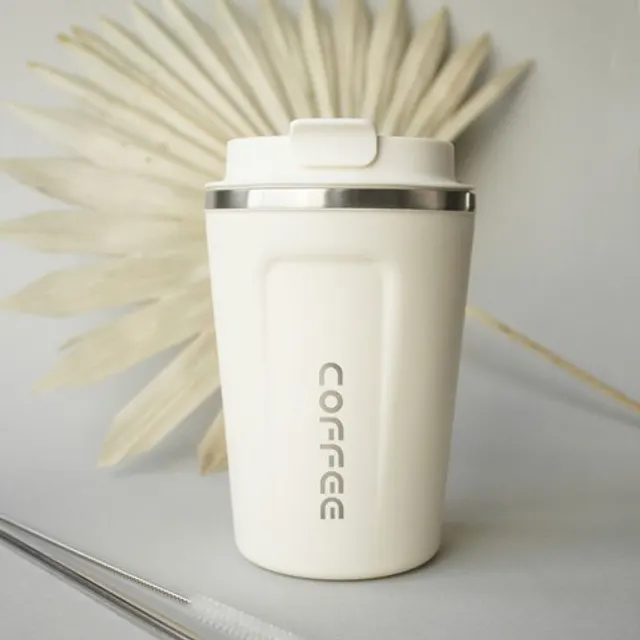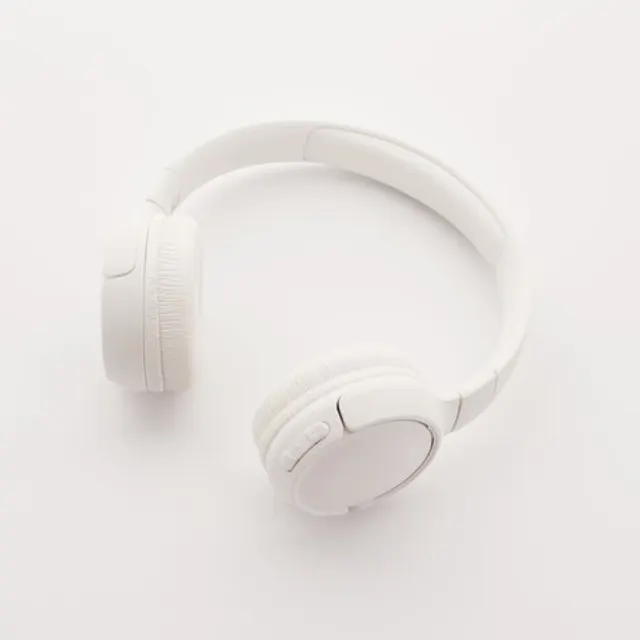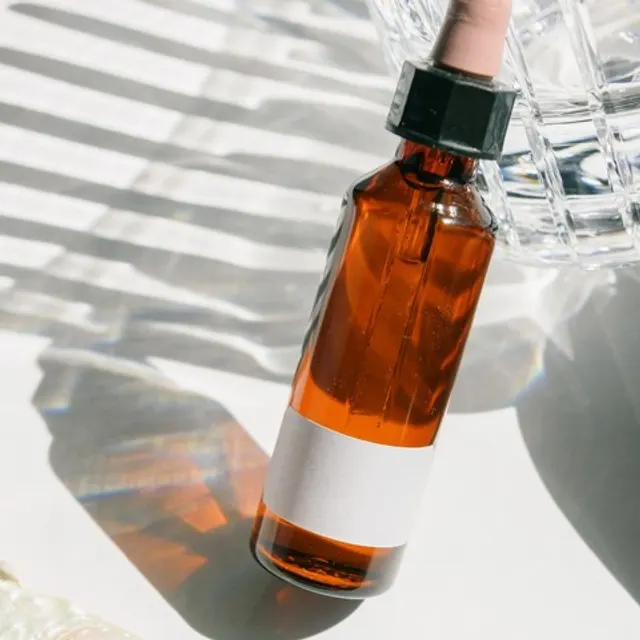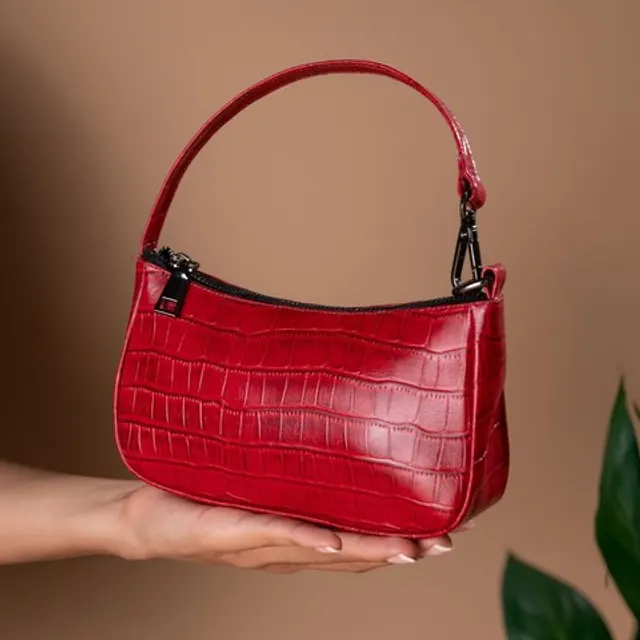
Product · Workflow

From product photos to a finished video, one step at a time

The Workflow takes one product from its photos to a video you can post. You pick the photos and scenes, describe the motion and add text if you want. Every button shows its price before you press it.

Or get started: $0 today, then $60/month. Cancel anytime.

WorkflowExample
  1. ✓Product & photos
  2. 2Pictures
  3. 3Video
  4. 4Text
  5. 5Finish

Tick the pictures your video uses

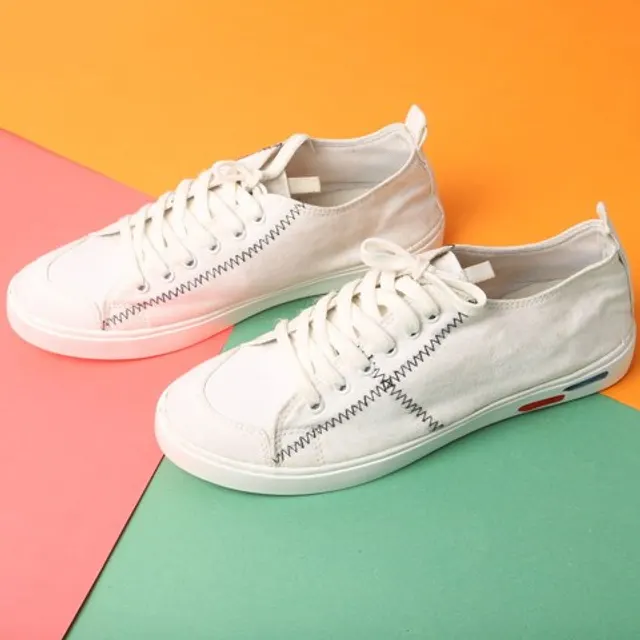
Your photoFree. Goes in as a picture.
“On a marble counter in morning light”

AI sceneNano Banana Pro · 35 credits
Next: VideoContinue

How Workflow works

Step 1Product & photos

Pick a product. Tick the photos the model may use and star the one that leads.

Step 2Pictures

Pick your photos for free, or make an AI scene around your product.

Step 3Video

Pick the model and describe how the camera moves, in your words.

Step 4Text

Optional. Put your own words on top, free.

Step 5Finish

Watch it, download it or send it to your phone.

What Workflow does

Start from a product you already have

Open the Workflow and pick a product from your Products, or press Make a video on a product's page in Research. A Research product joins your Products on the way in, with its listing photos. You can also add a product from its TikTok Shop link.

The photos arrive unticked. Tick the ones the model may use and star the one that leads. Need a better angle? Add your own until the product has 12 photos.

From ResearchFrom a TikTok Shop linkYour own photos, up to 12 in all

Pick the pictures

Your photos cost nothing. By default the video runs on Kling 3.0 Omni, which takes each ticked photo as a picture and makes a 9:16 video, even from square photos.

An AI scene puts your product in a place you describe in one sentence, made with Nano Banana, and the first scene you pick starts the video. Before you spend anything on video, you see the scene beside your real photo and confirm the product looks right.

Your photo

Free, goes in as a picture

AI scene

“On a marble counter in morning light”

A scene you tick starts the video

What it costs

Each step shows its price before you press: a 5-second Kling 3.0 video at 1080p shows 105 credits on the chip beside Make video, and a Nano Banana Pro scene 35. Text costs nothing.

You can redo one step without paying again for the others. If a step fails or a content check refuses it, its credits come back on their own. A step that already finished stays charged.

Making a scene or a video needs Creator, Pro, Business or the free trial. The Free plan makes no video.

Each button shows its price

Make video · Kling 3.0, 1080p, 5 s105
Create scene · Nano Banana Pro35
TextFree
A step that failsCredits back
Make video · 105 credits

Describe the motion in your words

Write how the camera moves. For example: a slow push-in across the counter, ending close on the label. Write as much as you need; a counter shows when you get close to the model's limit.

The rules sit under your words as a line you can edit: only this product, unchanged and still, upright 9:16 as if filmed on a phone. Save the words you like as presets (up to 20), and Last used brings back your last ones.

Questions and answers

Short, plain answers. If yours isn’t here, ask us.

Something else? Write to support@turbougc.com.

No. The Workflow starts from your product's photos, the listing's or your own, and the model makes the video from them.

In the Workflow you pick the model and write the motion yourself, one product at a time. A format plans the whole shot for you with a fixed recipe and can run on up to 10 products at once. Formats live in Create, where the studio calls them formulas.

Yes, from an AI scene or from your photos as pictures. If you make a photo the start frame, the video takes the photo's shape, so for 9:16 from a square photo, make an AI scene first.

If a step fails or a content check refuses it, its credits come back on their own. A step that already finished stays charged. You can run that step again without paying for the steps before it.

TurboUGC doesn't post for you. Download the video, or scan a code to save it on your phone, then post it yourself from your TikTok account.

You can pick a product and its photos. Making a scene or a video needs credits: Creator, Pro, Business, or the 3-day free trial with 310 credits.

Related

FormatHold & ShowA hand holds the product up to the camera. It never turns. Ten seconds, vertical, made from your product photos, with an AI voiceover you can switch off.ModelKling 3.0Kling 3.0 is Kuaishou's video model and the first one in the studio's list. Pick it for a video with an avatar, sound you can switch on, or a set first and last frame.ModelSeedance 2.0Seedance 2.0 is ByteDance's video model, in three speed tiers. It takes up to 9 product photos as references, makes sound at no extra cost, and runs three of our four formats.ModelNano BananaNano Banana is Google's picture model and the one picture model in the studio. It makes product shots and scenes that keep your product exact, plus the start frames and avatar pictures other steps use.ProductText overlayText overlay burns your words into a finished video: a headline, a product name, a line telling viewers to tap the link. It costs no credits, in the Workflow and on every format.ProductResearchResearch lists the TikTok Shop products selling now: their sales and growth, how many creators promote them, and the commission they pay. Find one you like, then press Make a video.ProductLibraryYour Library holds every video and picture you make in the studio, newest first. Download them, send them to your phone, or clear out what you don't need.Who it's forFor shop sellersYou already have product photos. TurboUGC turns them into short vertical videos for your TikTok Shop listings: a hand holding the product, an unboxing, an outfit check or a walk-up to your furniture. No samples to ship, no creators to chase, no waiting on a post that never comes.